How to Fix Google Drive Desktop Not Syncing [2026 Update]

By: Author
Published: March 31, 2026
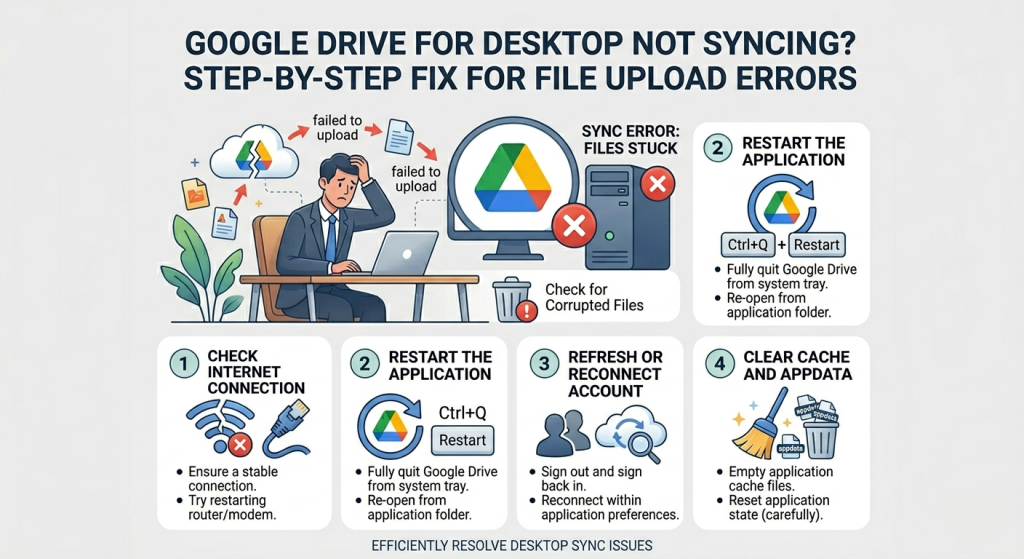
Google Drive for Desktop Not Syncing? Step-by-Step Fix for File Upload Errors

"Resolve Google Drive desktop sync issues with our step-by-step fix for file upload errors. Get instant solutions!"

01. The "First Responders" Checklist

Before diving into registry edits, perform these baseline checks to rule out the most common Google Drive sync errors:

Pause & Resume

Click the Drive icon > Settings (Gear) > Pause Syncing. Wait 30 seconds and click Resume. This often force-restarts the sync engine.

Check Quota

If your Google Workspace storage is full, sync stops instantly. Visit drive.google.com/settings/storage to confirm you have overhead.

Quit & Restart

Don't just close the window. Right-click the Drive icon in the tray (Windows) or Menu Bar (Mac) and select Quit before relaunching.

02. Fixing "Drive Unit Not Mounting"

A common 2026 issue on Windows 11 involves the Google Drive virtual disk (usually G: or H:) failing to appear in File Explorer after a system update.

Solution: Reassign the Drive Letter

  1. Open Google Drive Preferences.
  2. Click the Settings (Gear) icon in the top right.
  3. Scroll to "Google Drive streaming location."
  4. Change "Drive letter" to an unused one (e.g., from G: to Z:).
  5. Click Save and restart the application. This forces Windows to re-register the mount point.

03. Clearing the "DriveFS" Cache

If your app is stuck on "Fetching new items" or "Syncing 1 of 432" indefinitely, the local metadata cache may be corrupted. Clearing it forces a fresh index without deleting your cloud files.

Windows Steps

%LOCALAPPDATA%\Google\

1. Quit Google Drive.
2. Navigate to the path above.
3. Rename the DriveFS folder to DriveFS_Old.
4. Restart Google Drive.

macOS Steps

~/Library/Application Support/Google/

1. Quit Google Drive.
2. Use 'Go to Folder' in Finder with the path above.
3. Rename DriveFS to DriveFS_Old.
4. Relaunch and sign in again.

04. Bandwidth Limits & Proxy Conflicts

Sometimes the Google Drive for desktop not syncing issue is caused by your own network settings. In 2026, enhanced privacy features in Windows and macOS can accidentally throttle the sync client.

  • Remove Throttle Limits: Go to Drive Preferences > Settings > Bandwidth Settings. Ensure "Download rate" and "Upload rate" are set to Don't limit.
  • Bypass Proxies: If you are on a corporate network, ensure *.google.com and *.googleapis.com are whitelisted in your firewall.
  • Anti-Virus Exceptions: Add GoogleDriveFS.exe (Windows) or the Google Drive app (Mac) to your antivirus "exclusion" or "whitelist" to prevent it from scanning real-time sync packets.

05. Permissions and Filename Conflicts

If specific files show an upload failed error while others sync perfectly, the issue is likely metadata-related.

Issue Type The Fix
Invalid Characters Remove symbols like / \ : * ? " < > | from filenames. These cause cross-platform sync failures.
Locked Files Ensure the file isn't open in another app (like Excel). Drive cannot sync files that are currently "locked" by the OS.
Permission Denied Right-click the local folder > Properties > Security. Ensure your user profile has Full Control.

06. The "Clean Slate" Reinstall (2026 Edition)

If you recently updated Windows and are seeing the "Unable to launch Drive for computer" error, a standard uninstall isn't enough. You must purge the registry and local app data.

Advanced Cleanup (Windows Only)

Run Command Prompt as Administrator and execute these sequentially to remove stubborn remnants:

taskkill /F /IM "GoogleDriveFS.exe"
rd /s /q "%LOCALAPPDATA%\Google\DriveFS"
rd /s /q "%PROGRAMDATA%\Google\DriveFS"

After executing, restart your PC and download the latest version from google.com/drive/download.

Still Not Syncing?

The Web Browser Workaround

If you're in a time-crunch, remember that the desktop app is just a mirror. You can always manually upload files through drive.google.com to ensure they are backed up while you troubleshoot the sync client.

Contacting Support

As a Google Workspace user, you have access to 24/7 support. If the "Clean Reinstall" fails, generate a "Diagnostic Log" from the Drive app settings and provide it to the Google Support team.

Final Tip: Always keep 10% of your local disk space free. Google Drive uses local storage as a "buffer" for uploads; if your hard drive is red-lined, sync will fail.

Tags: How to Google Workspace
Last updated: April 1, 2026

Recent Posts

Why Do My Emails Look Spammy? The Top 15 Spam Trigger Words to Remove Immediately

Why Do My Emails Look Spammy? The Top 15 Spam Trigger Words to Remove Immediately

You've spent hours crafting the perfect email campaign, but your open rates are disappointing. The problem might not be your content, but specific wor

Oct 2, 2025
Email Deliverability
How Often Should I Send Emails? Finding the Optimal Sending Frequency to Avoid Spam Filters

How Often Should I Send Emails? Finding the Optimal Sending Frequency to Avoid Spam Filters

Finding the right email sending frequency is one of the most challenging aspects of email marketing. Send too often, and you risk spam complaints and

Oct 2, 2025
Email Deliverability Email Warmup
How to Get My Brand Logo in Gmail: Understanding the New BIMI Requirement for Authentication

How to Get My Brand Logo in Gmail: Understanding the New BIMI Requirement for Authentication

BIMI (Brand Indicators for Message Identification) is the new email authentication standard that allows verified brands to display their logos directl

Oct 1, 2025
How to BIMI Record
My Domain is Being Spoofed: DMARC Explained to Prevent Phishing Attacks

My Domain is Being Spoofed: DMARC Explained to Prevent Phishing Attacks

Domain spoofing occurs when attackers send emails that appear to come from your domain, but are actually sent from malicious servers. These phishing a

Sep 30, 2025
DMARC Record How to